
Eliminate complex Apex triggers and Flow workarounds. Easily configure complex submission criteria, child record conditions, cross-object approvals, and dynamic user tagging — all from a single intuitive UI.
Why Easy Approval Automation?
All businesses have unique approval processes across Standard and Custom Objects with complex conditions & triggering points. Developers and Admins spend days automating these with Flows and Apex triggers.
Key Automation Features
Triggering Record Submission
Submit records to approval processes automatically on Insert or Update based on custom conditions — including evaluation of child record fields.
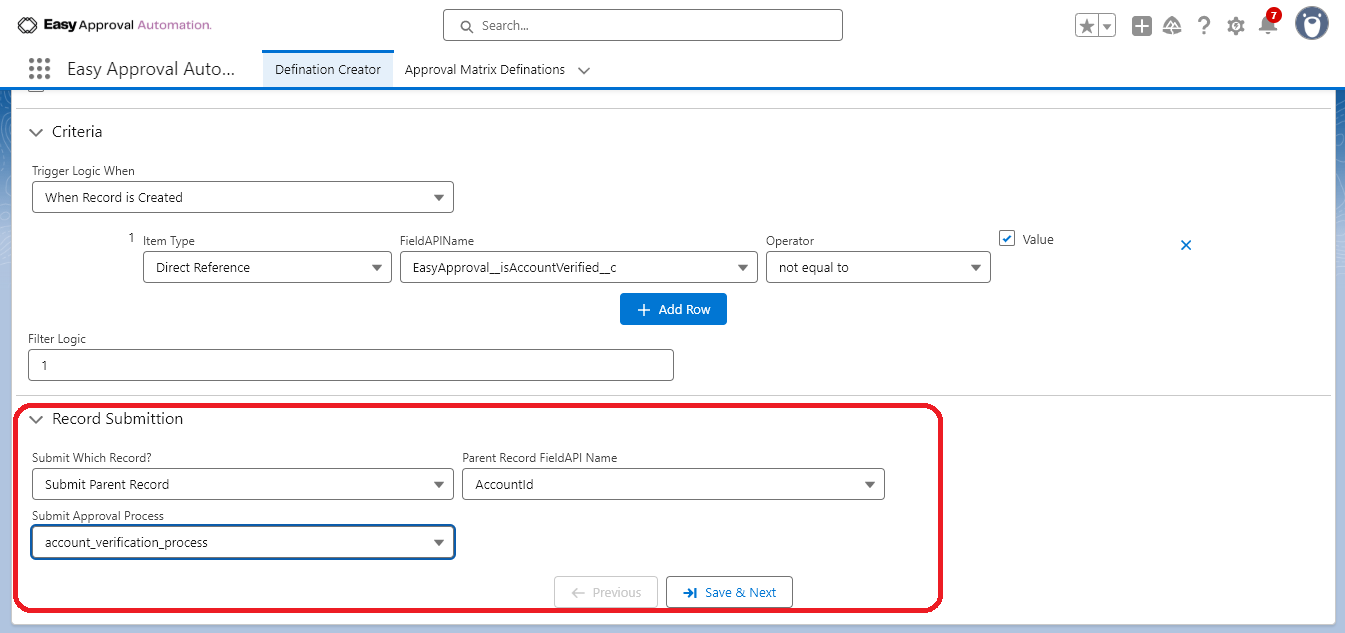
Parent Record Submission
Trigger an event on a child or related record (e.g. Case created) and automatically submit its Parent Record (e.g. Account) to Approval.
Dynamic User Tagging
Automate Related User fields based on record criteria with mandatory default fallback rules when no criteria matches.
Step-by-Step Setup Guide
Follow this step-by-step manual to configure your approval definitions, rules, and deployment.
Launch the App
Open "Easy Approval Automation" from the Salesforce App Launcher.
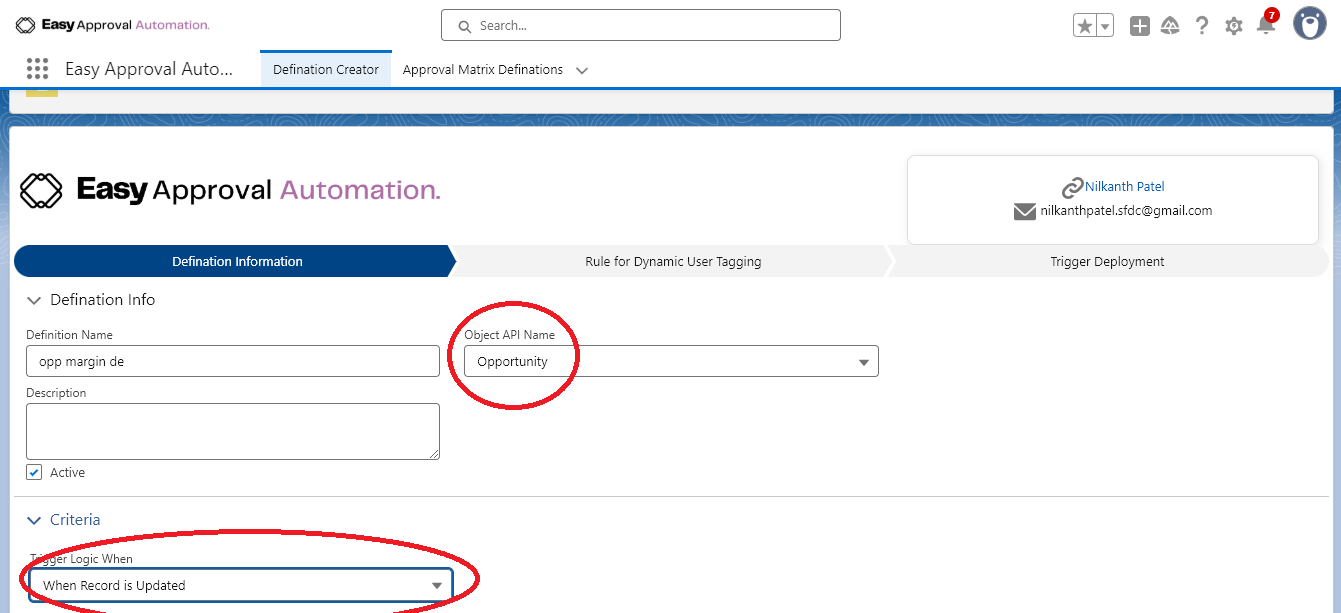
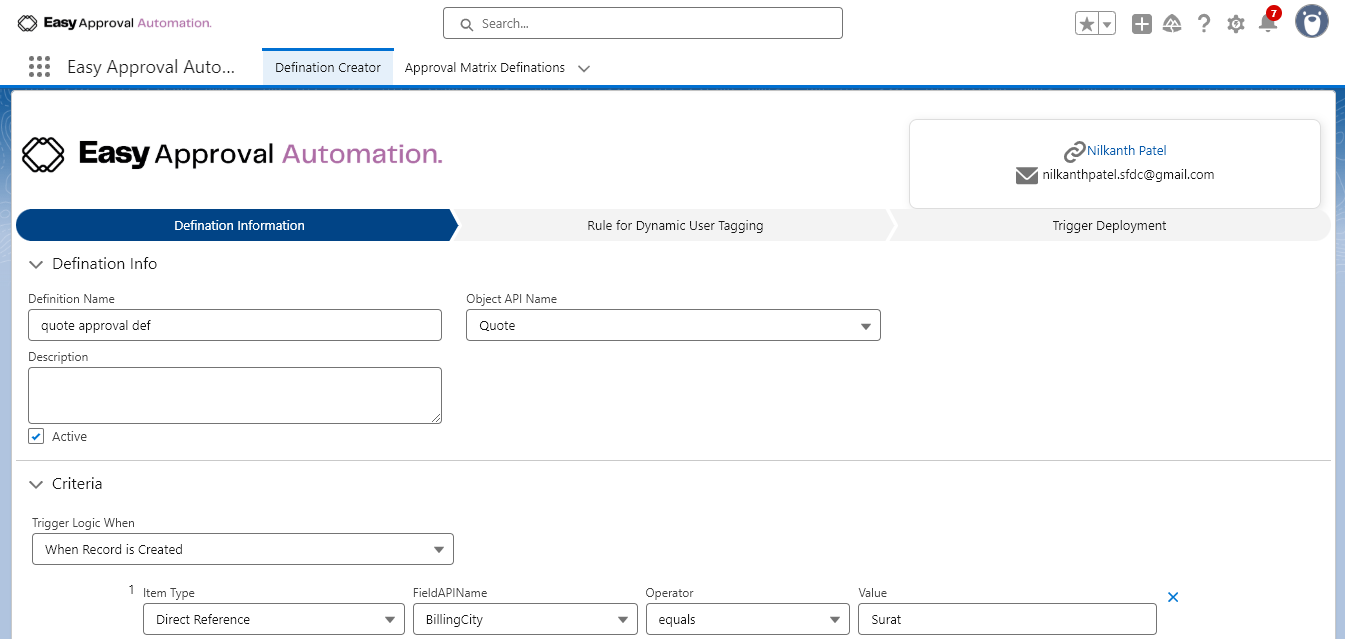
Definition Information
Fill in your approval definition details, target object, DB event, and submission criteria.
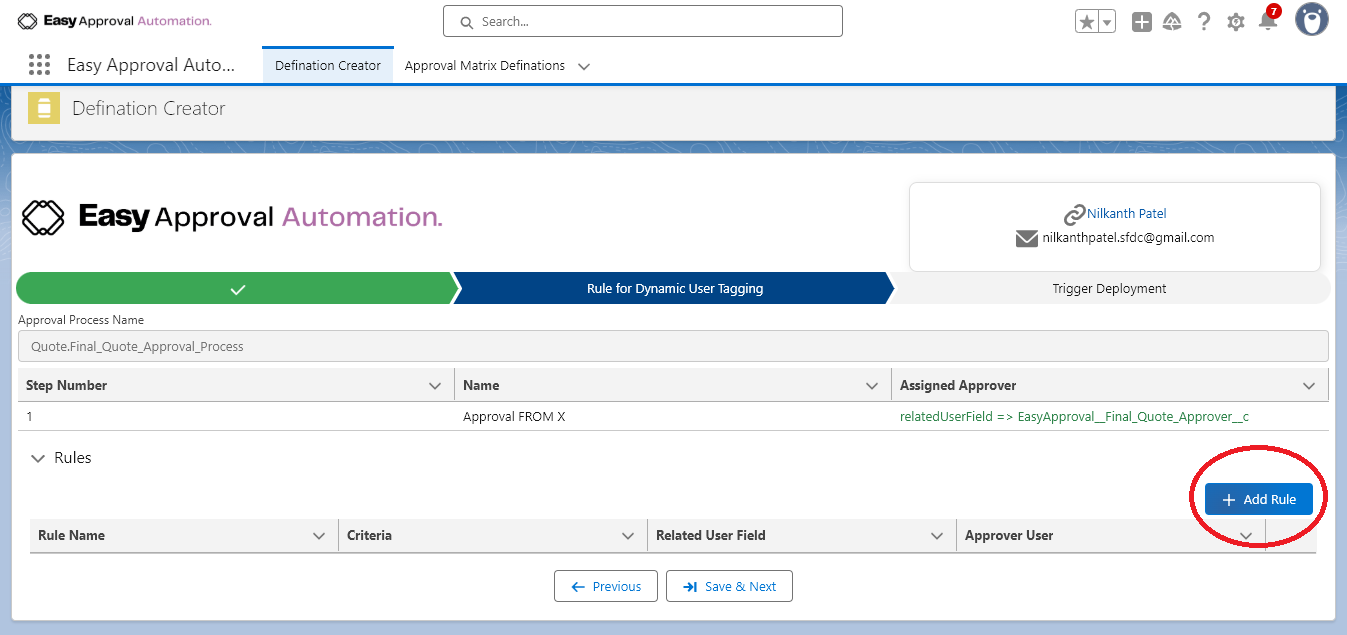
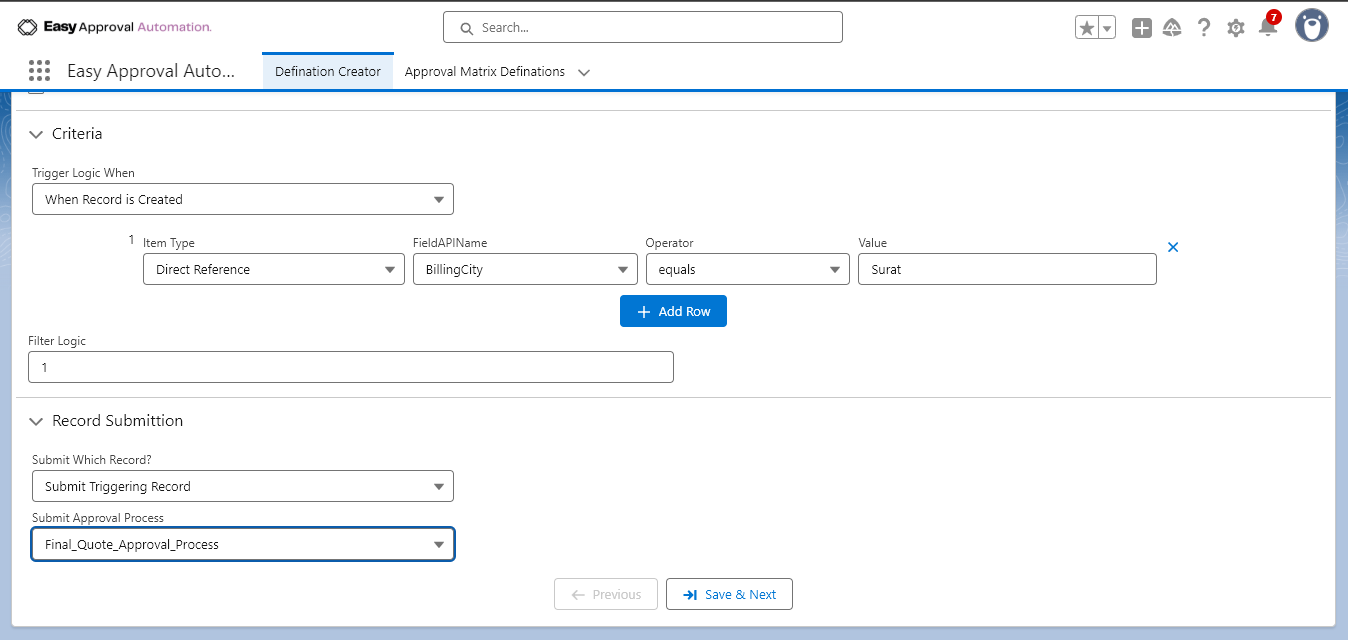
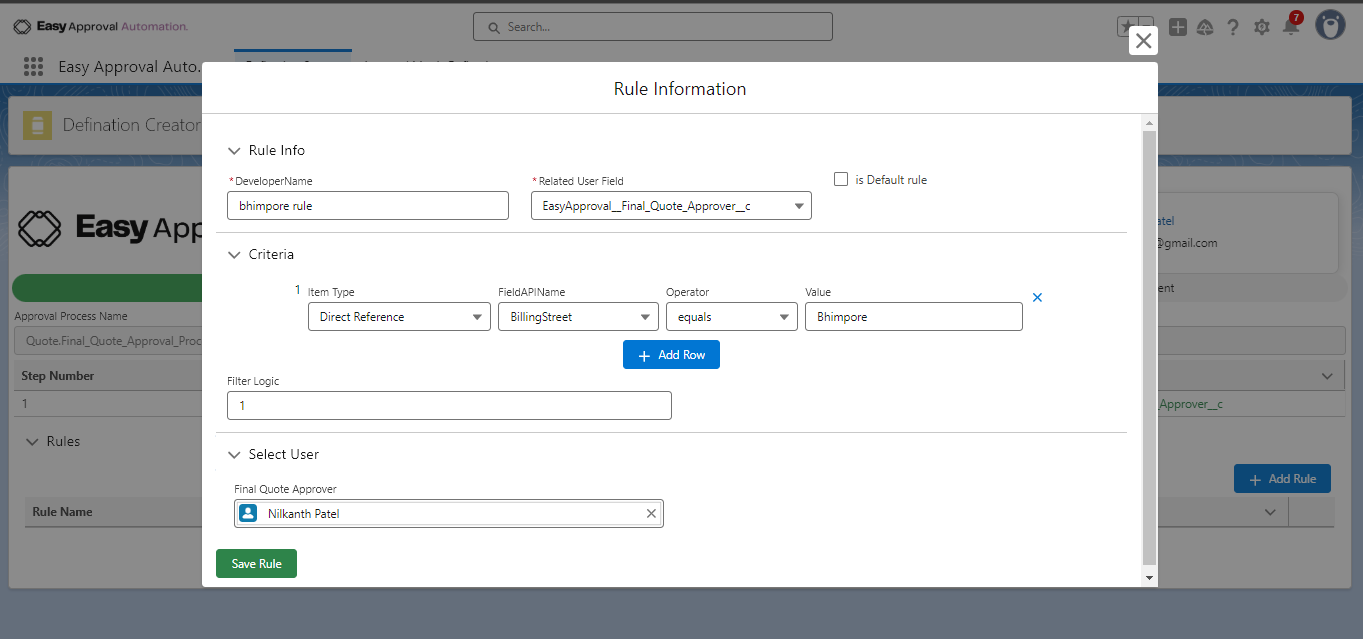
Rule for Dynamic User Tagging
Create dynamic rules for Approver User fields. Creating a Default Rule is mandatory to handle fallback cases when no rule criteria is met.
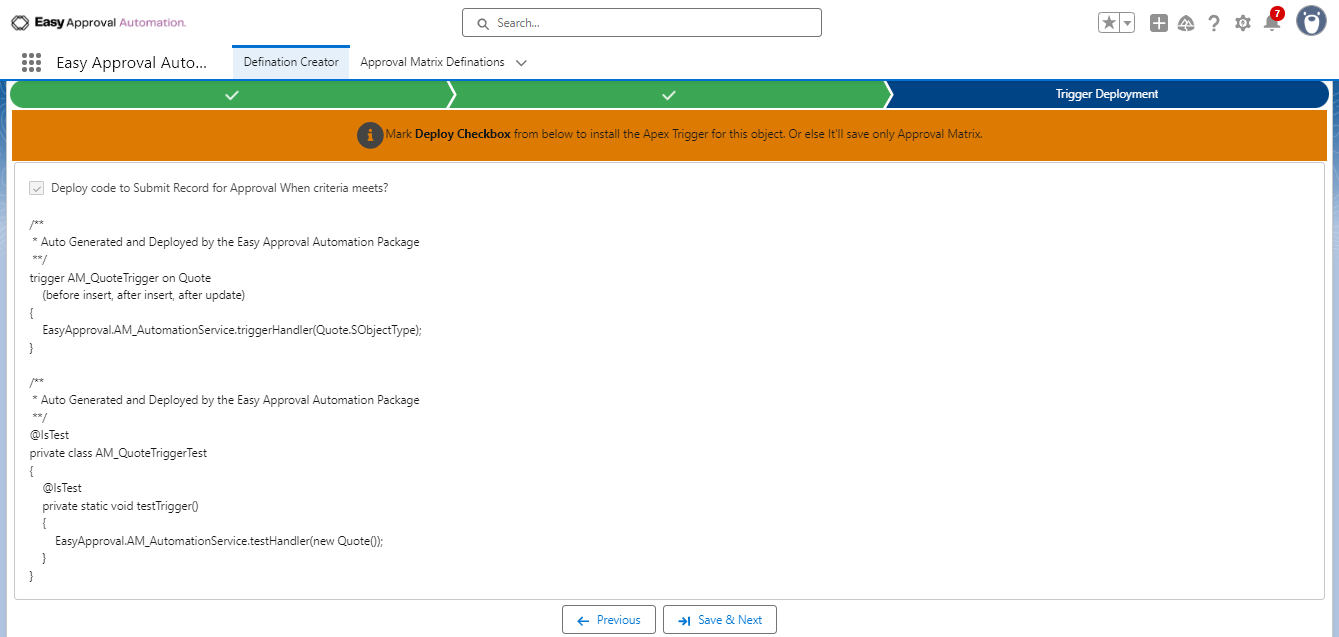
Trigger Deployment
Deploy the generic service trigger to your Salesforce org with one click, or copy and paste the generated code into your developer console.
Some Business Use Cases 💡
Explore how Easy Approval Automation solves complex enterprise requirements seamlessly.
1. Configuring Child Record Conditions
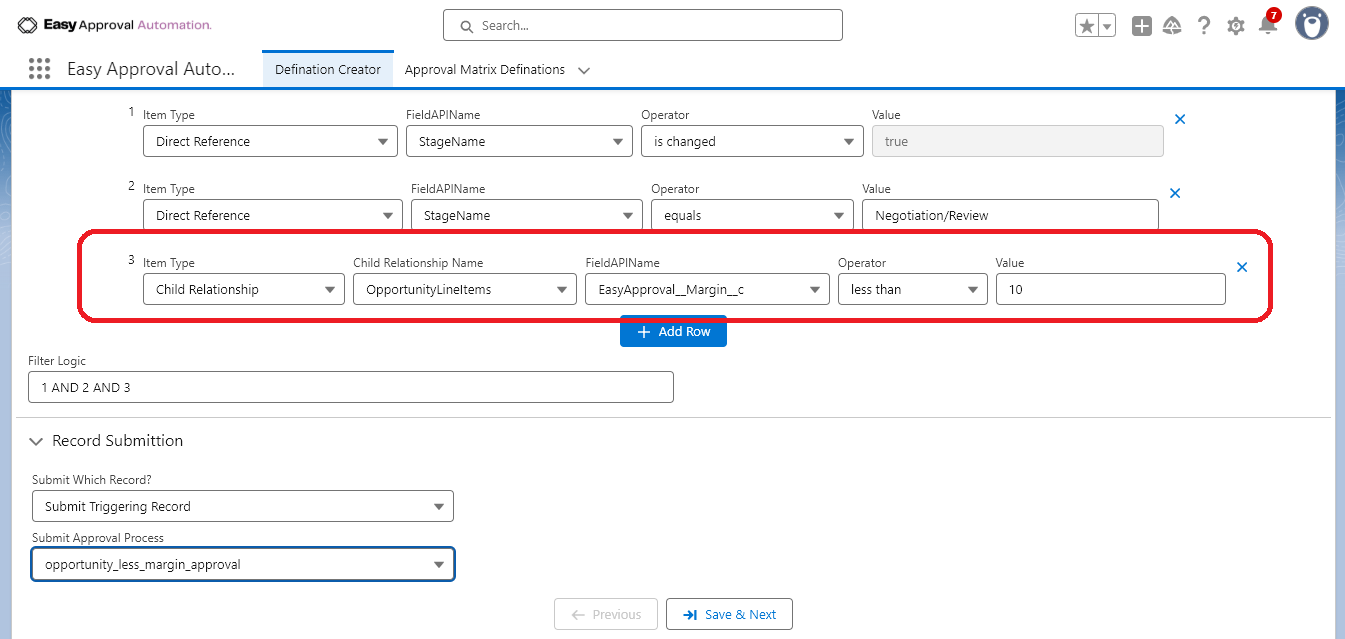
Sales Team follows step-wise Stage changes. When they mark “Negotiation/Review” Stage, if any Opportunity Product has less Margin than 10%, the Opportunity should go to Approval by “Margin Approvers”.
Here the criteria evaluates fields on “OpportunityLineItem” (Child) while the database event occurs on “Opportunity” (Parent).
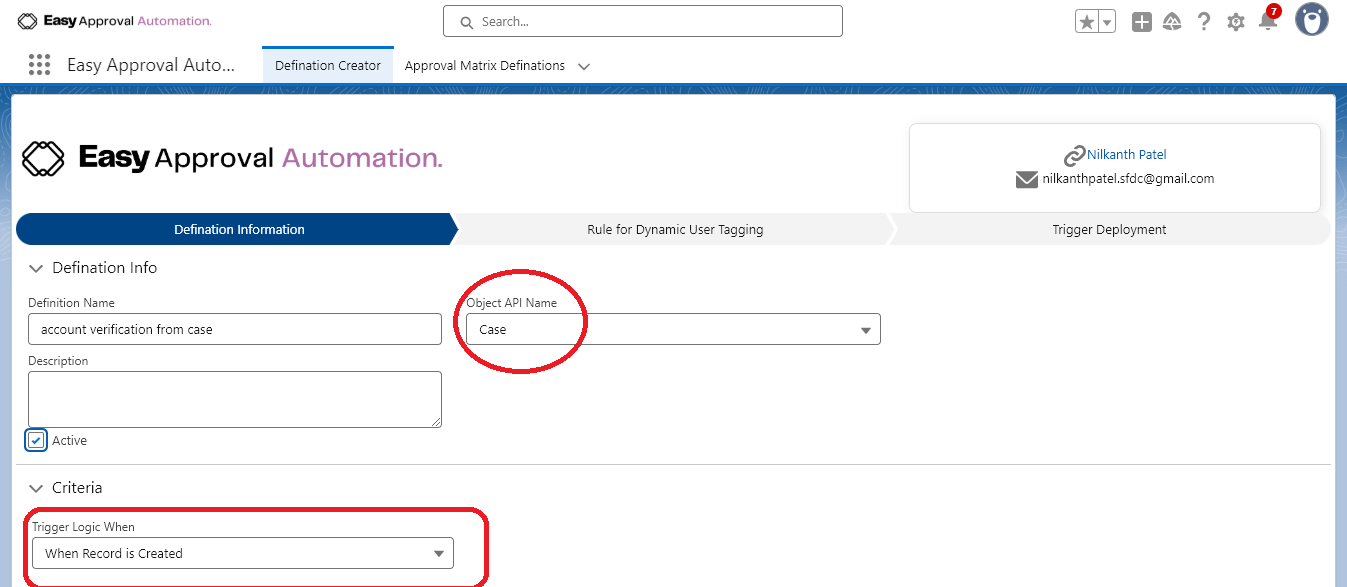
2. Submitting Parent Record
When Service Team creates a Case against an unverified Account, the Parent Account should automatically go to the Approval Process for verification.
Here the criteria evaluates event occurrence on “Case” while submitting the Parent Record (“Case.AccountId”).
3. Dynamic Rules for Approver User
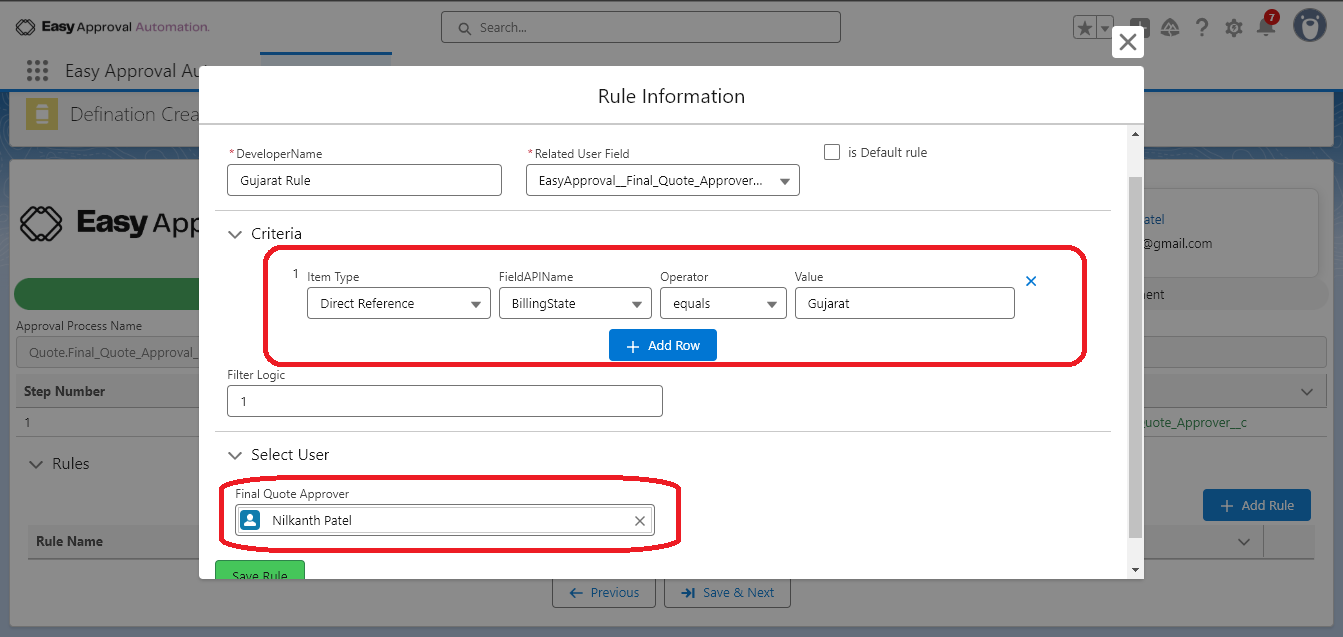
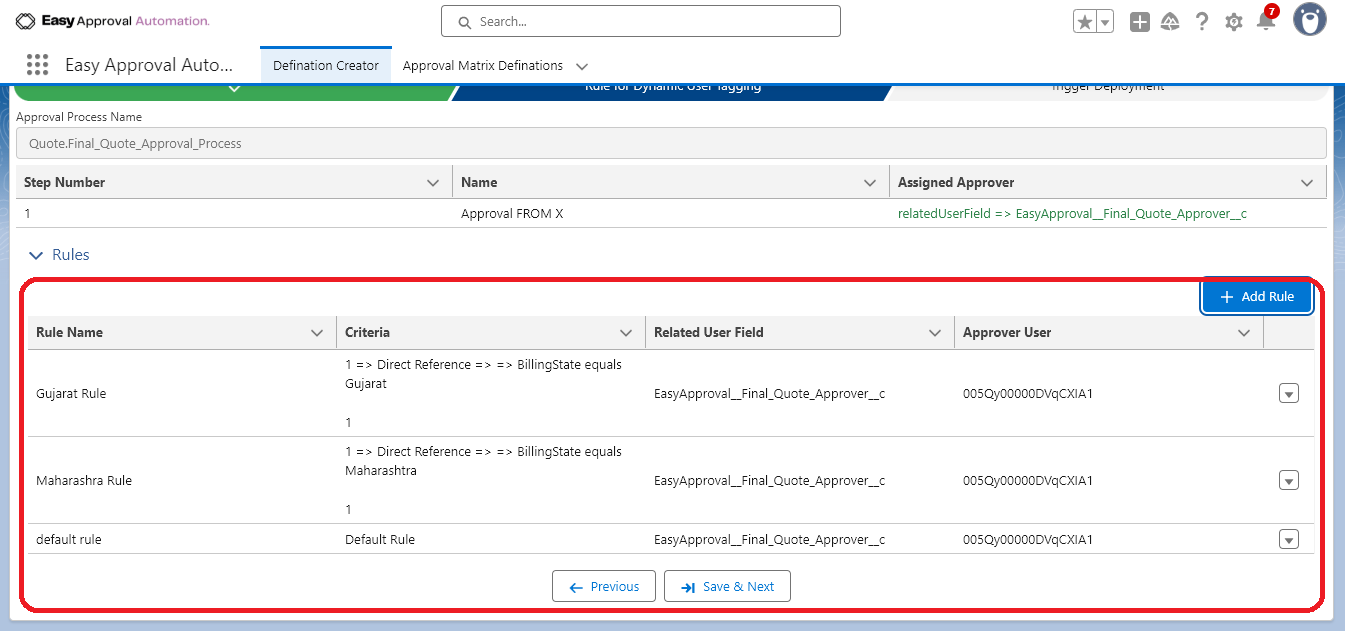
When a Quote is marked “Final Quote”, it must go to Approval. But the approvers differ based on BillingState (e.g. Gujarat → User 1, Maharashtra → User 2, else User 3).
Set the Step Approver Field as Related User Field “Final_Quote_Approver__c” & create dynamic rules based on the BillingState field.